Emojify for Canva - Quick Start Guide
How to use the app
Step 1.
- Start by logging into your Canva.com account. Navigate your way to the Canva app store using this link: https://www.canva.com/your-apps.
- In the search bar, type "Emojify" to locate our app and proceed to install it.

Step 2.
- Create or open an existing design file
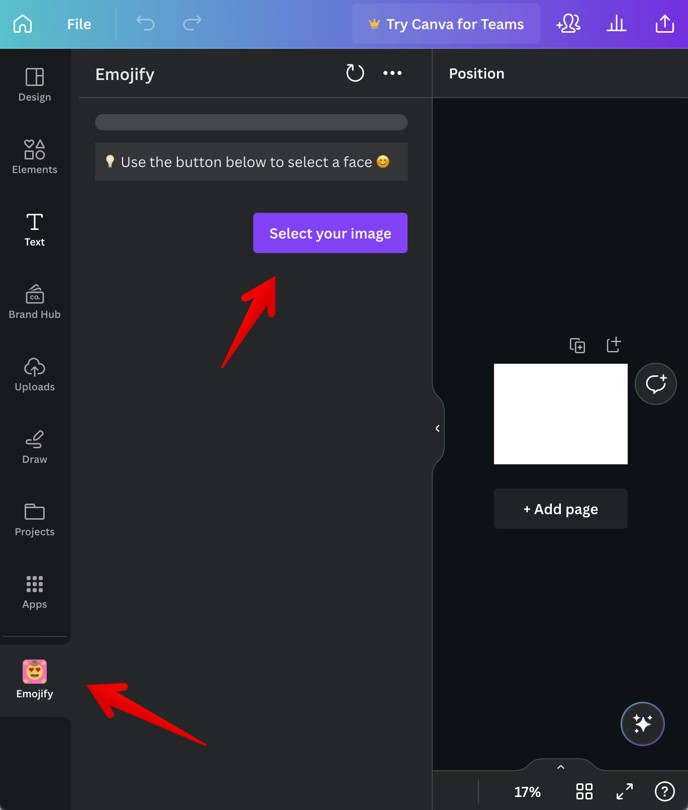
- Look for the "Emojify" icon on the lefthand sidebar and click it.
- Now click "Select your image" and upload a clear, discernible face photo.
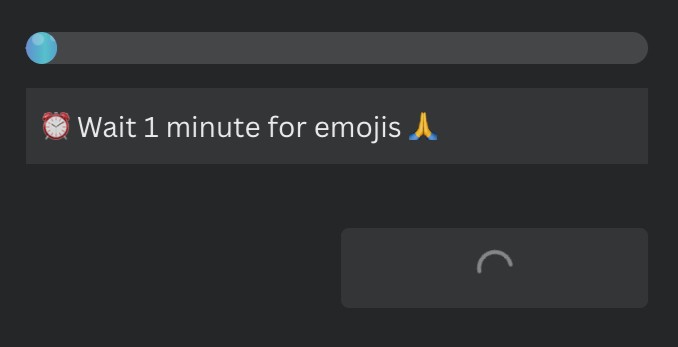
- After uploading your image, please be patient while our advanced face-detection system gets to work on emojifying your face. Our system may take up to 30 seconds to process the image.
Step 3.
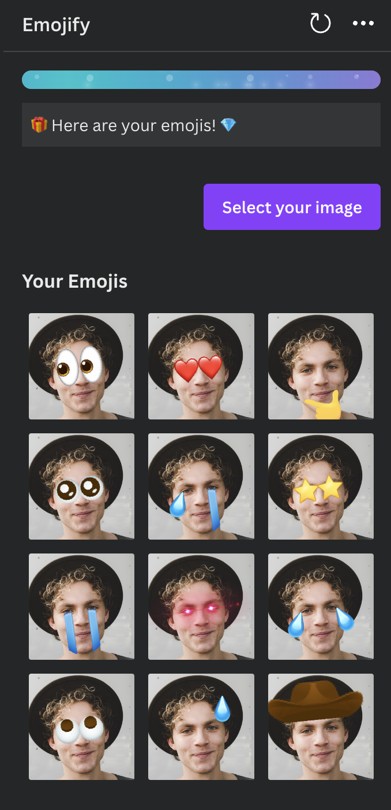
- Once the "emojification" process is complete, your new, vibrantly emojified face should now be displayed below!
Step 4.
- To utilize your newly emojified face, simply drag and drop the images into the desired design document
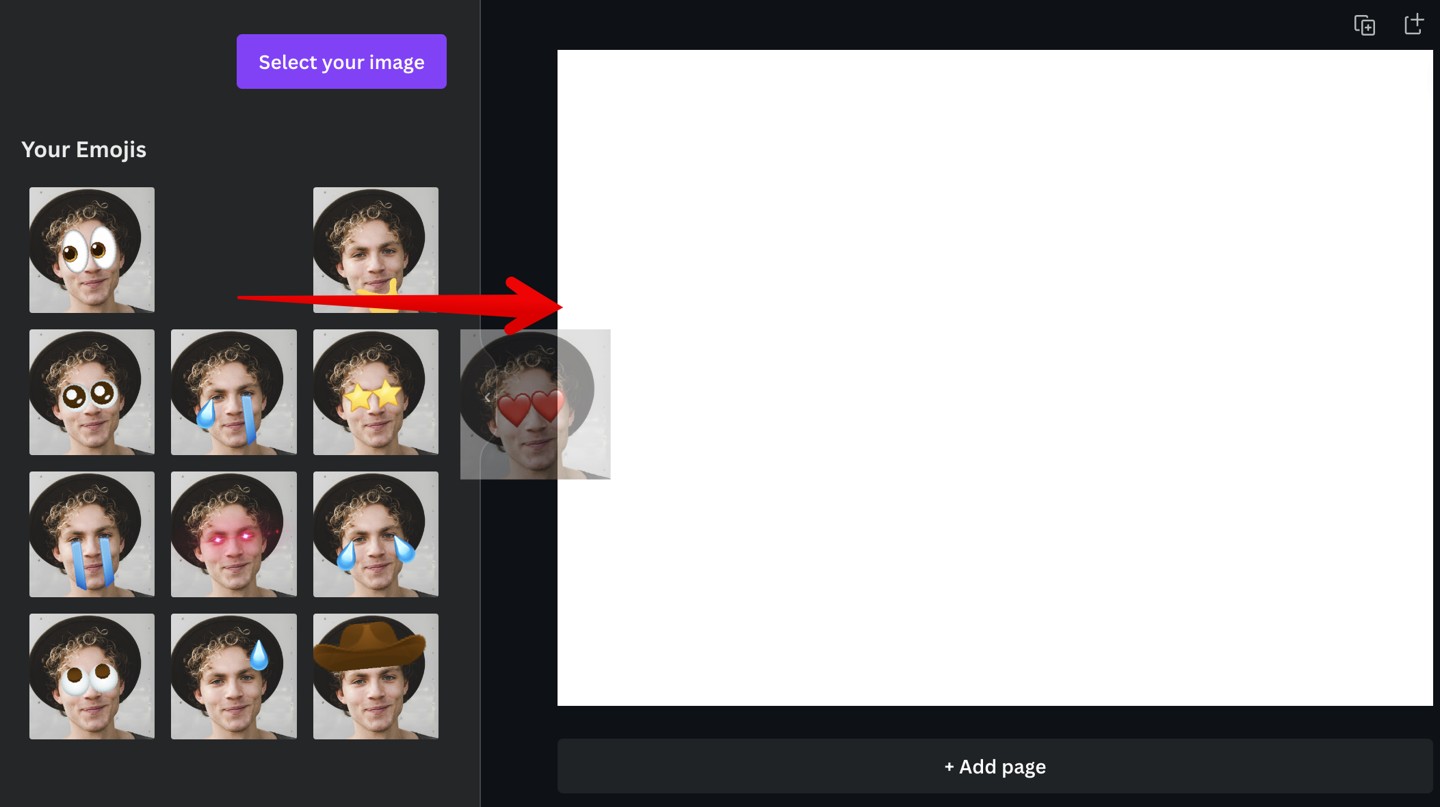
- You now have the ability to adjust, download, and alter images as you please. Feel free to incorporate them into any design file of your choice and utilize them in any manner that suits your needs!

Personalized Emojis for Other Platforms
Are you interested in utilizing your personalized emojis within instant messaging platforms like Slack, Microsoft Teams, or Discord?
-
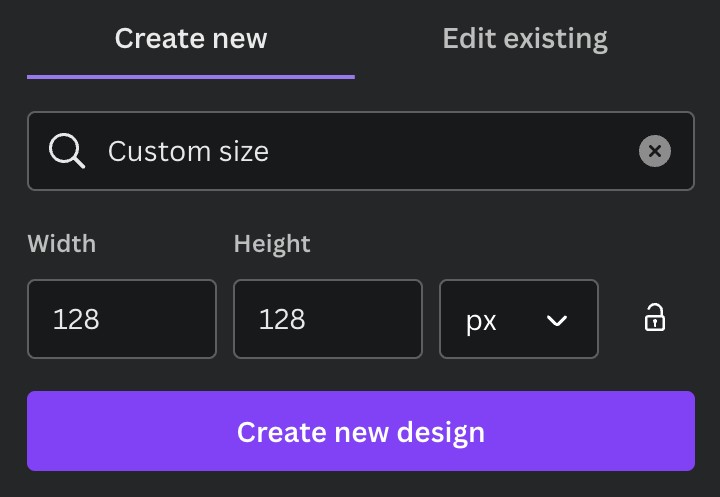
Create a design file with a custom size of 128 by 128 pixels
-
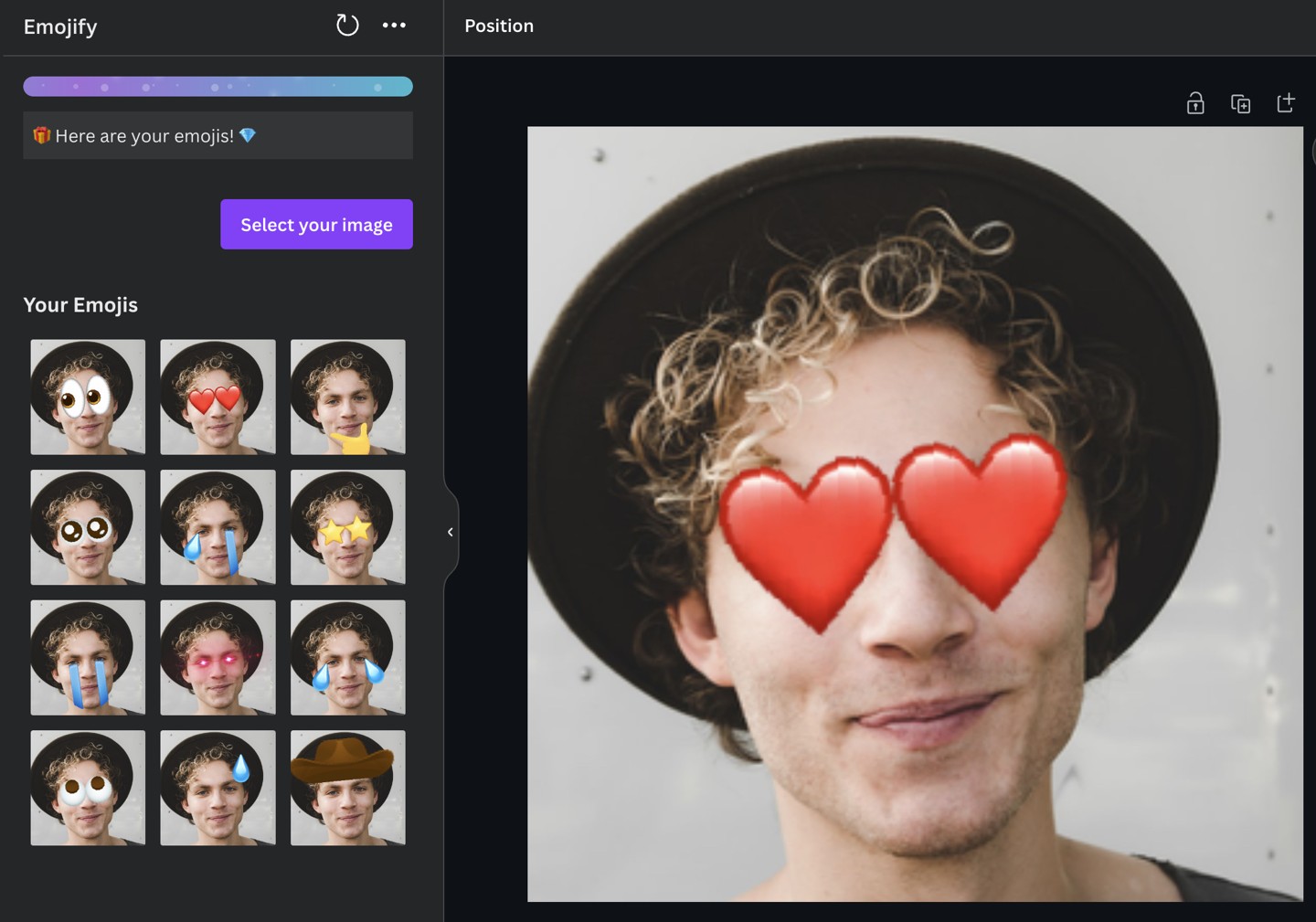
Drag your Emoji from the Emojify app into your design file, and ensure it fills the entire design document
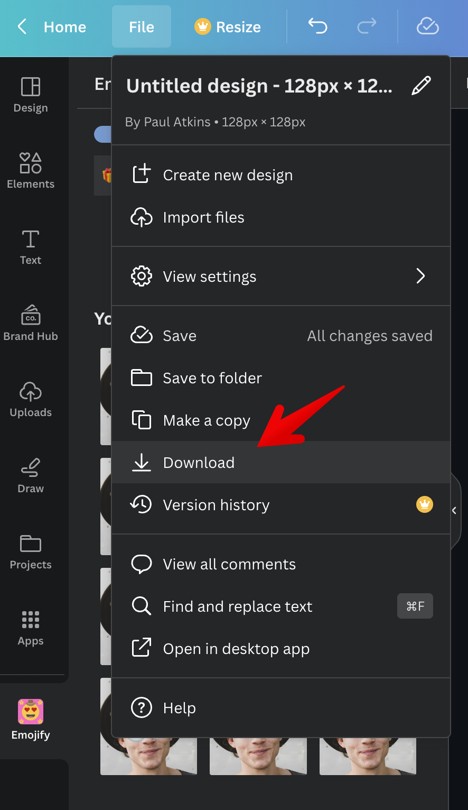
- Click "File" and download the image (ensuring you are downloading it with the 128*128 dimensions)
- Now this image is the correct size to be uploaded as a custom Emoji for your messaging app!
Do you have a feature request or question? Feel free to email support@emojify.org - we'd love to hear from you!
Coming soon - More Emojis!